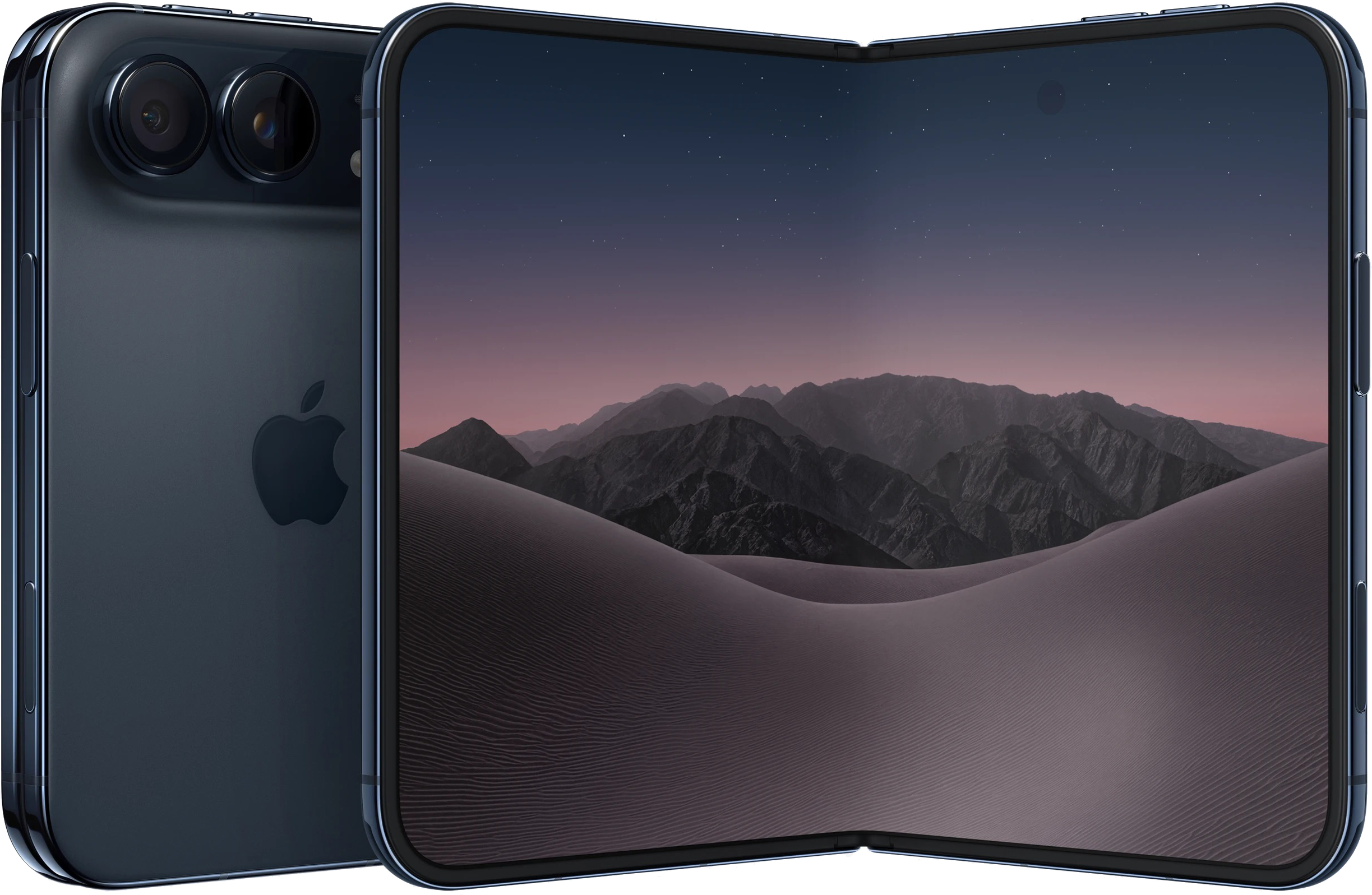
The Duo supports Touch ID rather than Face ID. Registering several fingerprints can help when you hold the phone in different orientations: go to Settings > Touch ID & Passcode > Add a Fingerprint and add prints from both hands. Owners with an Apple Watch can also enable Settings > Touch ID & Passcode > Unlock with Apple Watch; the watch must have a passcode and be worn near the phone. Another optional choice is Rest Finger to Open, which lets you unlock by lightly resting a finger on the sensor instead of pressing it.
For easier handling, turn off Fixed Position Volume Controls under Settings > Sounds & Haptics if you want the volume buttons’ functions to change with the phone’s orientation. Back Tap can assign a double or triple tap on the back of the device to take a screenshot: find it under Settings > Accessibility > Touch > Back Tap, then choose Screenshot in the Device menu. Reachability, enabled by default, brings the left or right side of the screen within reach when you swipe that edge. Turn it off in Settings > Accessibility > Touch > Reachability if you trigger it accidentally.
There is no built-in setting to lock the Duo when it is folded shut, but the Shortcuts app can automate the action. Create an automation for the device being closed, then add the Lock Screen action. In the Camera app, the six-dot Camera Controls menu lets you choose and arrange shortcuts such as flash and Live Photos. For Smart Take photos, turn off the capture flash at Settings > Camera > Flash During Capture if you do not want it to blink each time a picture is taken.
Comments (0)
No comments yet. Be the first!